
Introduction
In this article we'll show you how to set your assessment to ask your questions to learners in a random order.
Top tips before you begin
- When you randomise your assessment, only learners will see questions randomised. Authors will see all questions in the order that they were added.
- Sometimes you might want to ask sub-groups of random questions within an assessment. e.g. "I want to ask the learner five random questions about food, followed by four questions about service". If this sounds like your requirement, see our article about question pools instead!
How to set your assessment questions to randomised
If you want to set to your assessment to ask questions in a random order, here's what you need to do.
- From the bar that runs down the left of the side menu, click the Course structure button.
- If you haven't already, Add an assessment.
- Click on the ⋮ button to the right of the assessment.
- Click the Assessment settings option.
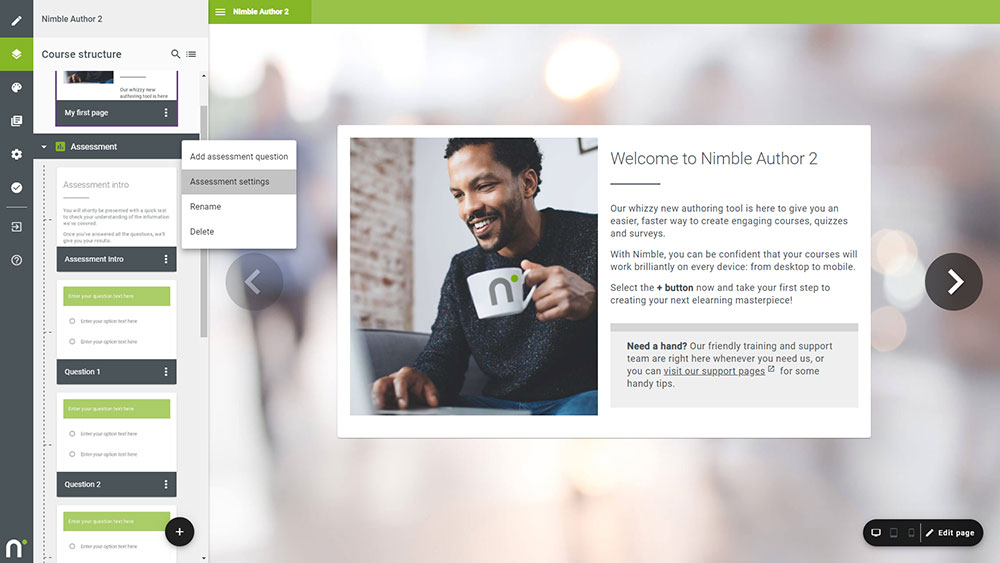
- Click Randomise questions to turn randomisation on.
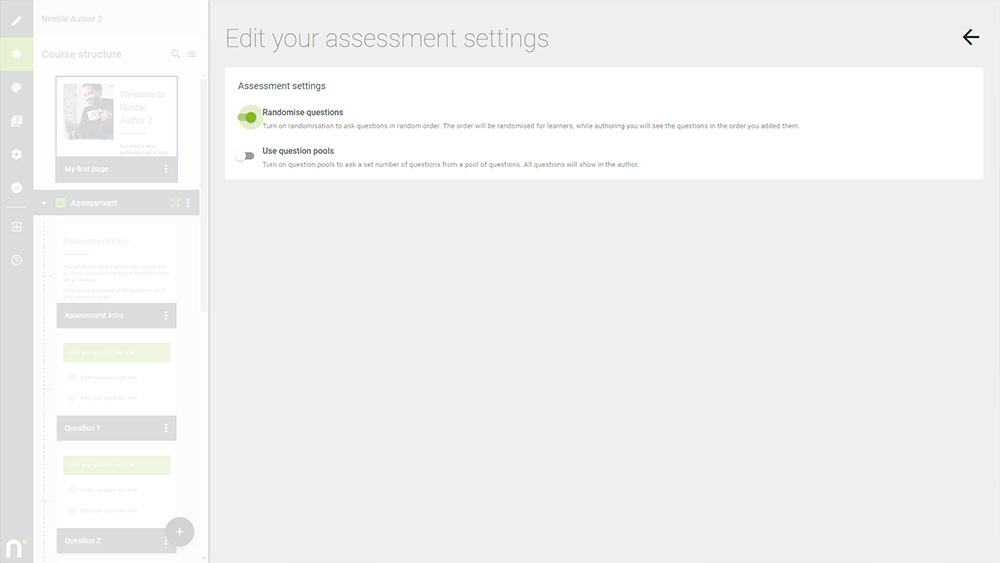
- Click the back button
 to finish.
You will see this green crossed arrows indicator when your assessment is set to randomise:
Can I create different groups of questions?
Sometimes you may want to have one or more subsets of questions within your assessment. You can do this by creating 'question pools'. See this article 'How to set up question pools' for more detail on how to do this.
Comments
0 comments
Article is closed for comments.