
In this article, we’ll teach you how edit the "from" name and point of contact email address used in email sent to learners.
This is done under the 'Notifications' section of the LMS settings.
Editing the "from" name and contact details
To edit these details:
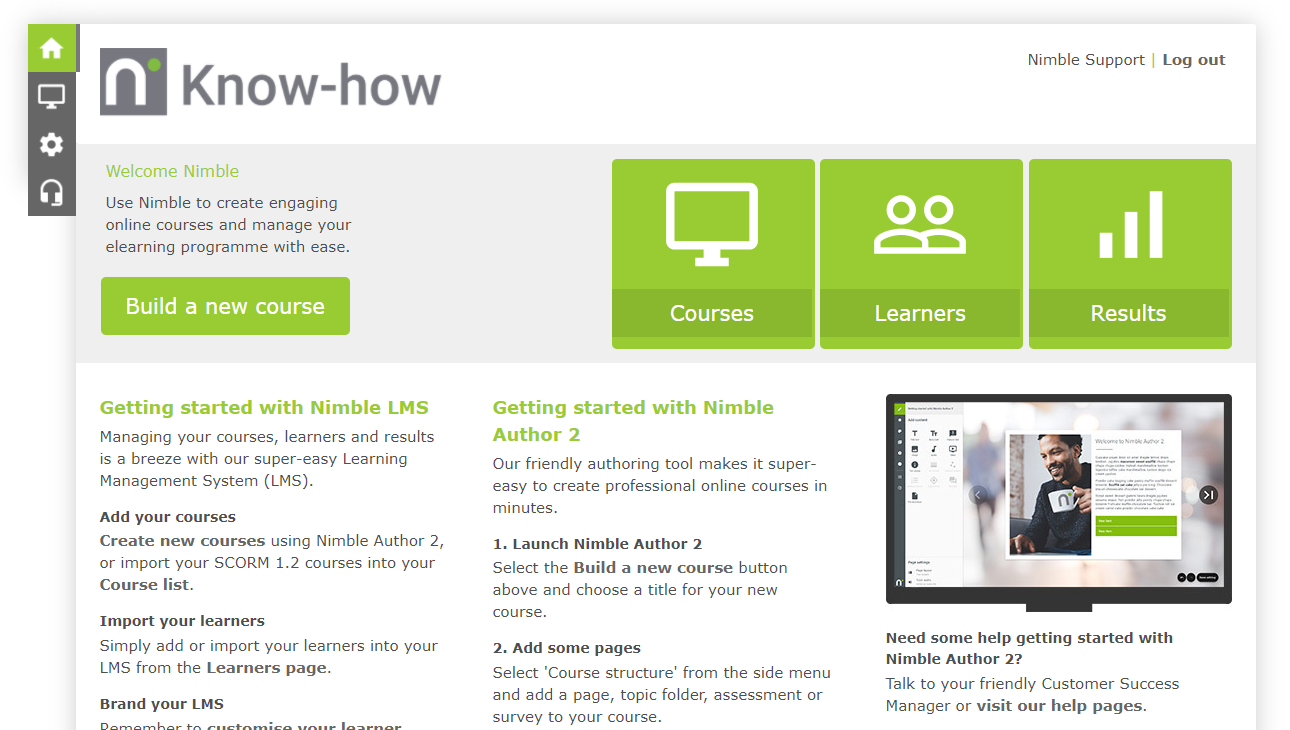
- From the Nimble LMS home screen, click the
 Settings button from the top left nav bar.
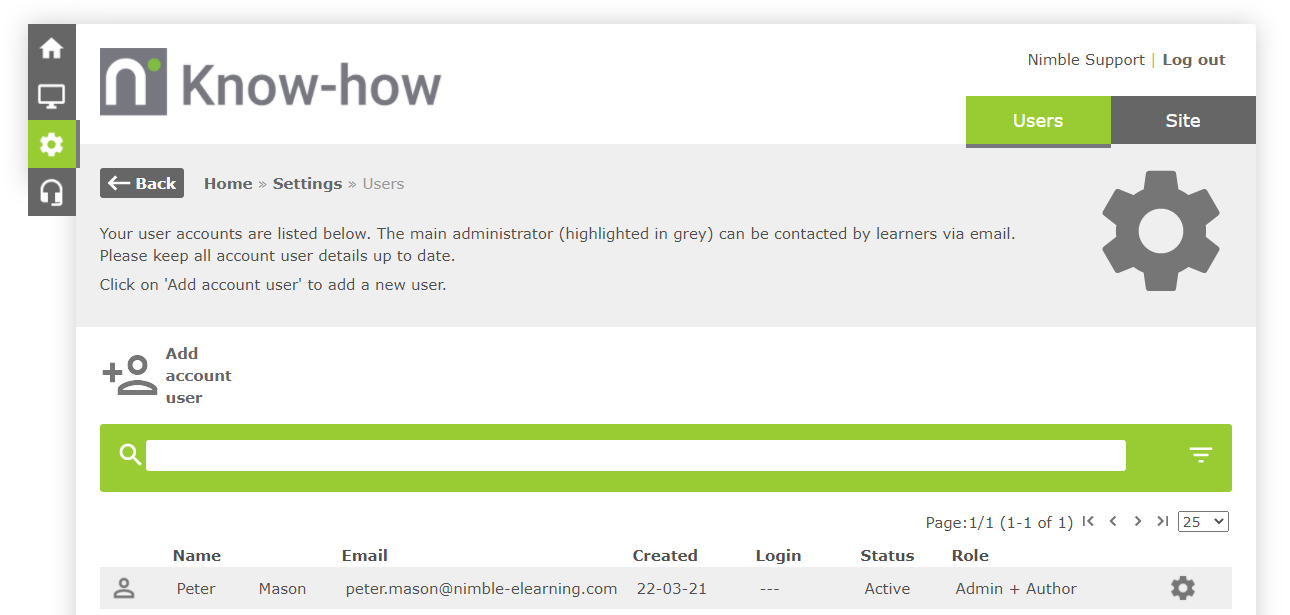
- Click the Site tab.
- Click the
 button.
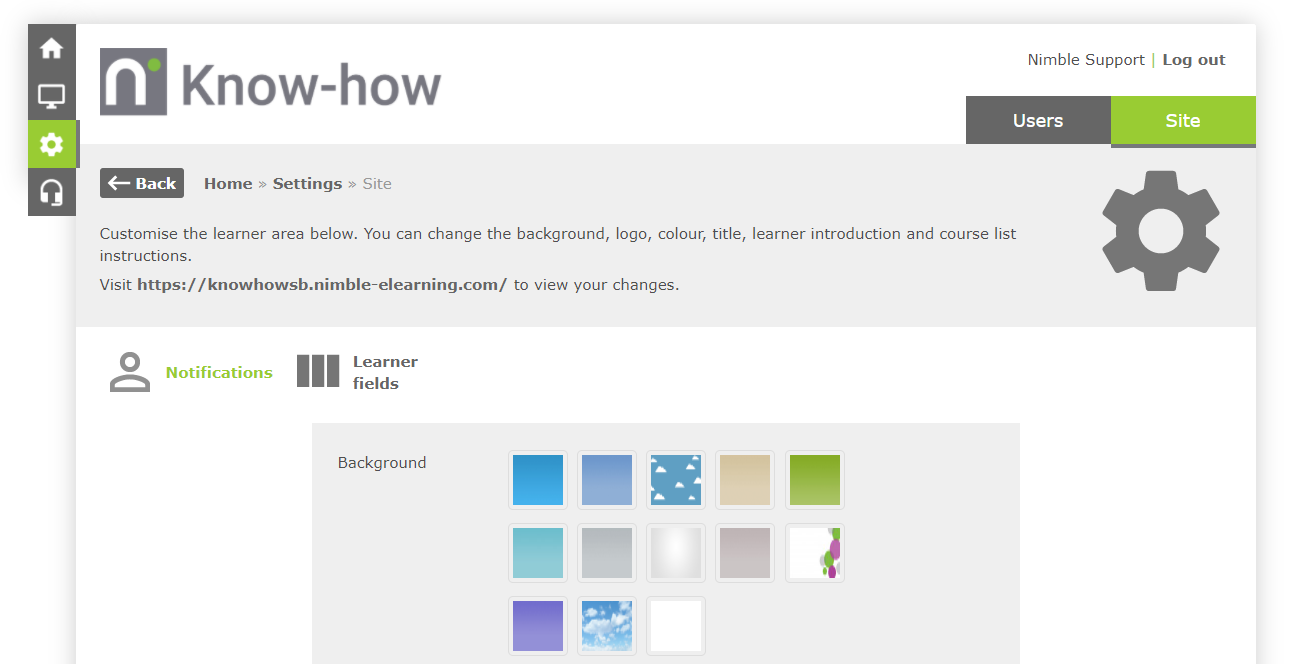
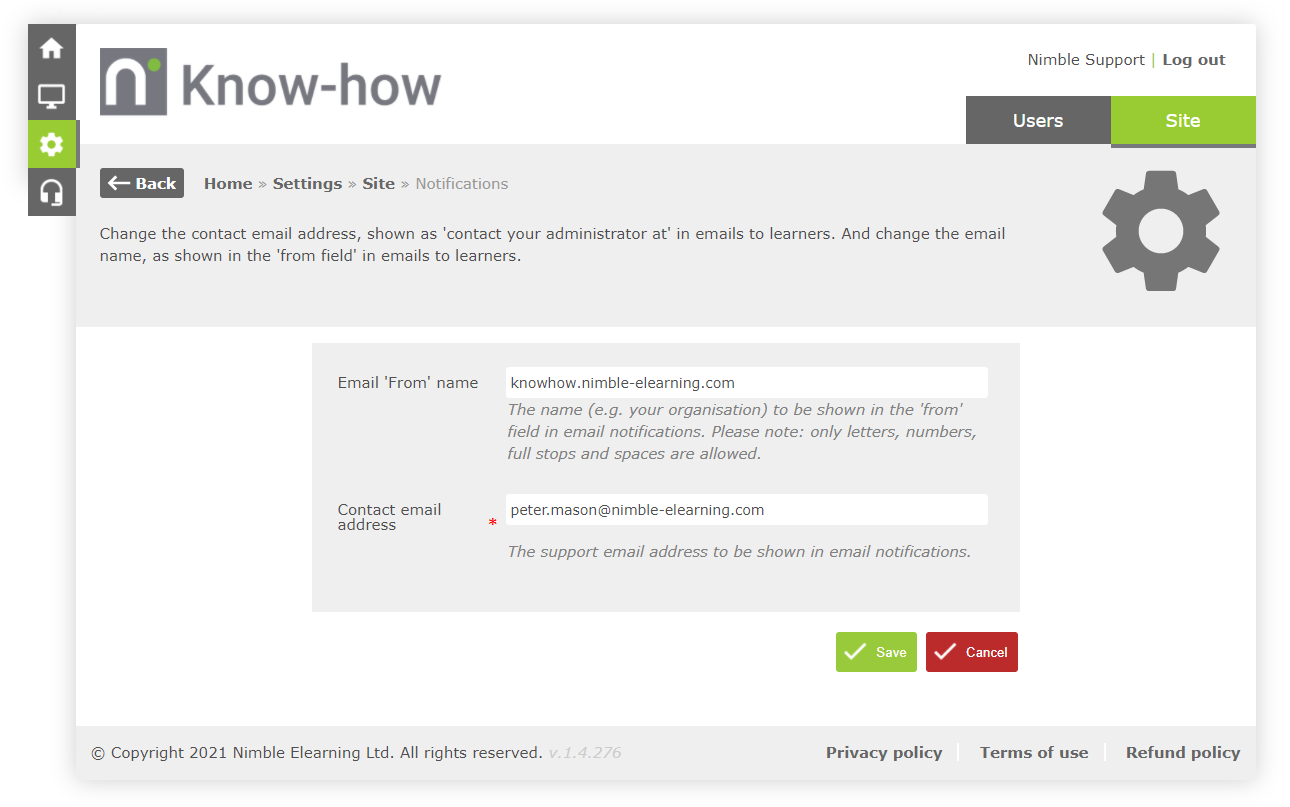
- Complete the required fields:
- Email ‘From’ name – The name that appears in the from field for automated emails sent by the LMS.
- Contact email address – The email address that’s listed in automated emails sent by the LMS, for learners to contact with any queries.
- Click the
 button.
Important note: If the account user's profile is currently, or at any later date, set to 'inactive', the system will default back to the email address of whomever is the primary account holder at the time, and will appear on LMS emails - rather than the email address which is shown and set in this area above.
Comments
0 comments
Article is closed for comments.